
Features
Everything that helps you stay ahead of the airplane.
Flight Cue is built around the points in a flight where workload rises and small details are easiest to miss. It turns airport, weather, runway, airspace, radio and arrival information into a clearer picture of what matters now and what comes next.
Departure awareness
Know the departure constraints before the wheels leave the ground.
Flight Cue keeps departure-critical airport information in the same cockpit picture. Published Takeoff Minimums and ODP awareness can be surfaced before launch, alongside runway, frequency and airport data, so an important departure requirement is harder to overlook.
- Prominent Takeoff Minimums / ODP awareness when published
- Departure runway, frequencies and airport reference kept together
- Designed to surface constraints before workload rises
- One tap from the airport picture to the underlying departure reference
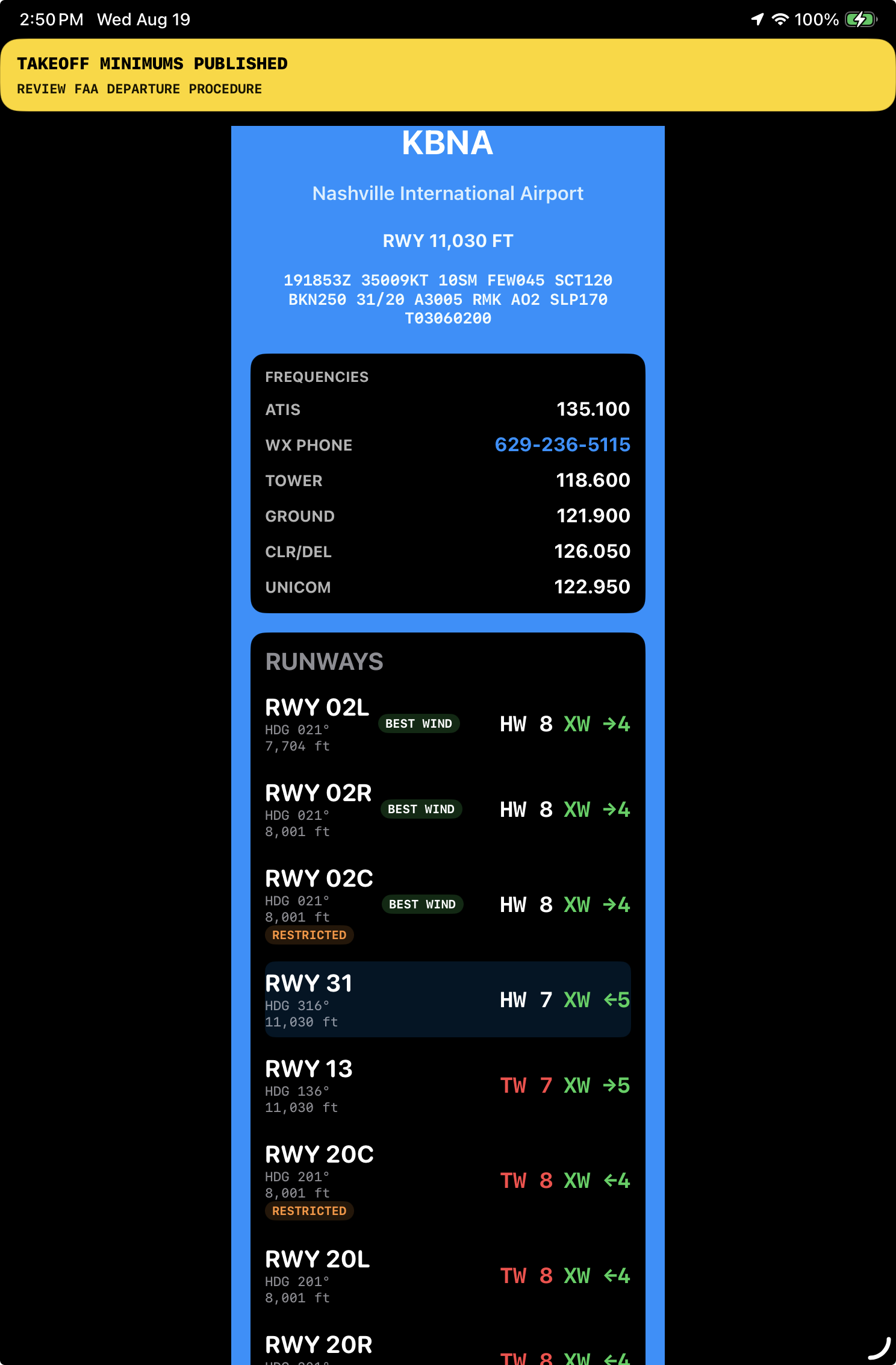
Best runway
Turn the wind into a runway decision.
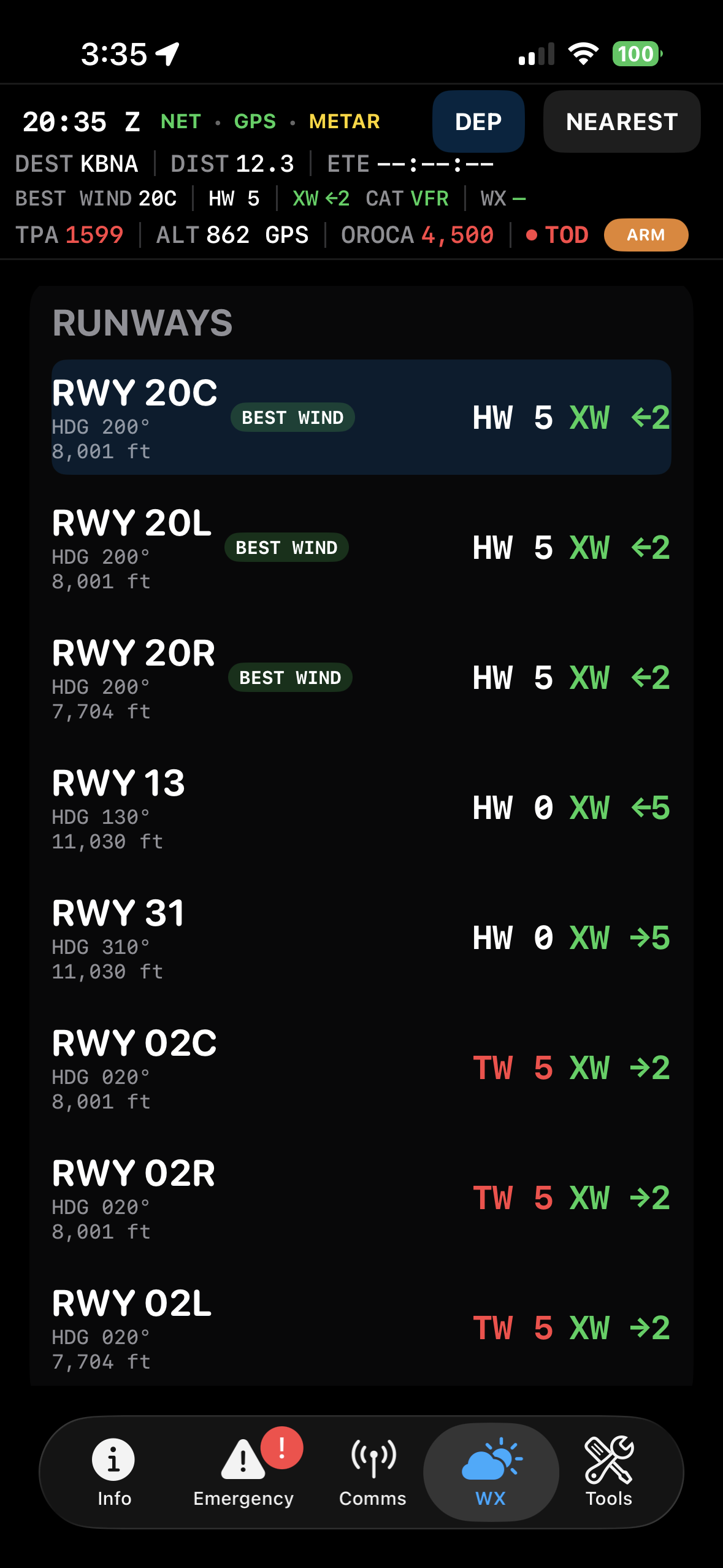
Flight Cue does the runway math for you — and makes the crosswind picture visual. Instead of mentally translating “the wind is from there” into what it means for each runway, you can immediately see the wind relationship, headwind and crosswind components, and which runway or runways make the most sense.
- Visual crosswind awareness without mentally working out wind direction versus runway heading
- Headwind and crosswind components calculated by runway
- Best-runway highlighting without hiding the alternatives
- Multiple runways remain equally valid when conditions warrant it
- Runway selection stays connected to the rest of the arrival picture
Runway guidance
Build the runway picture before you turn final.
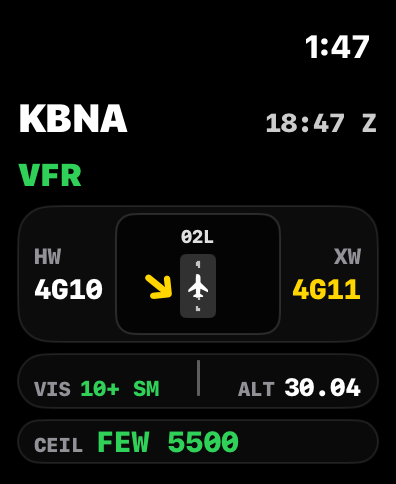
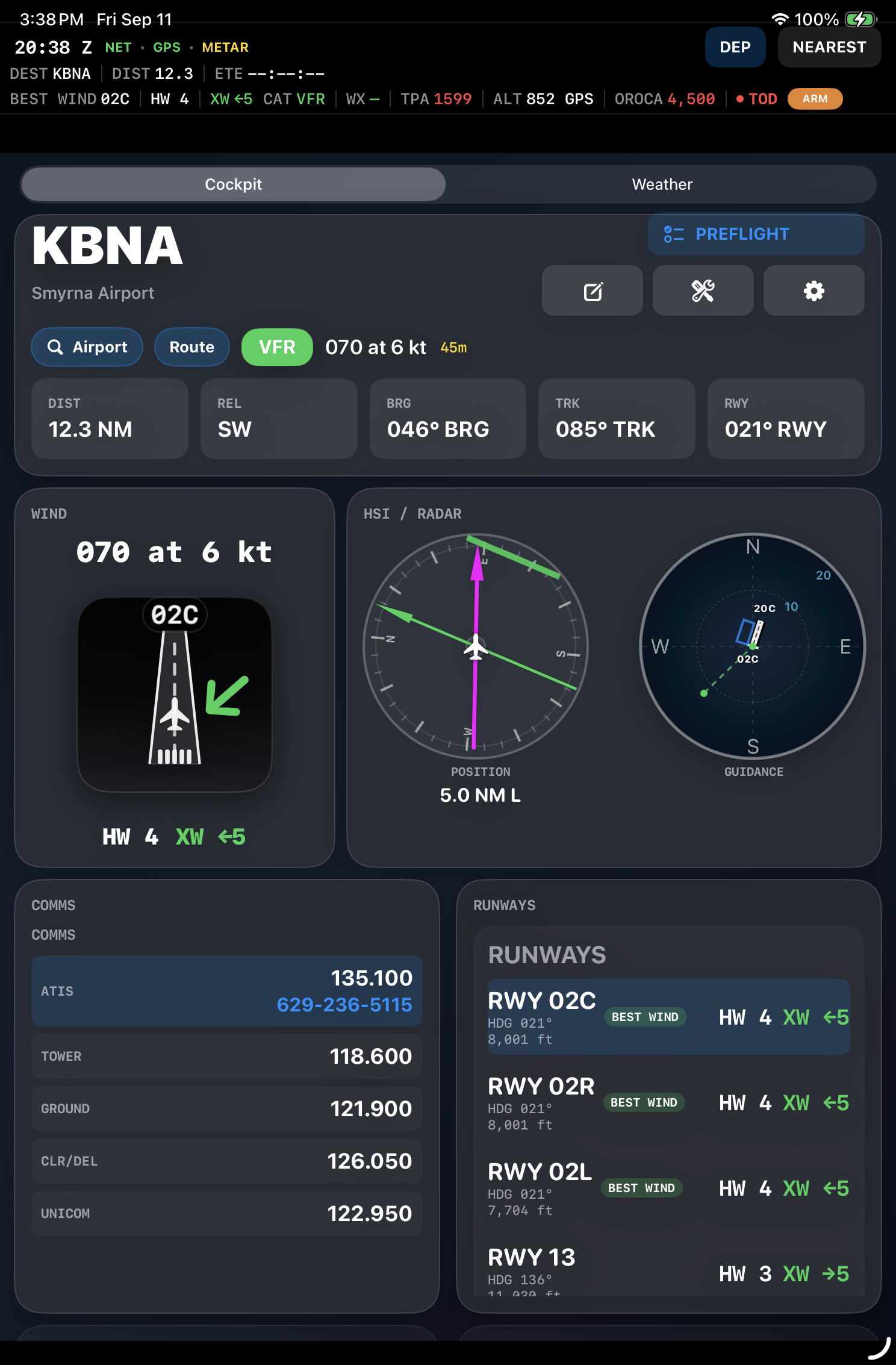
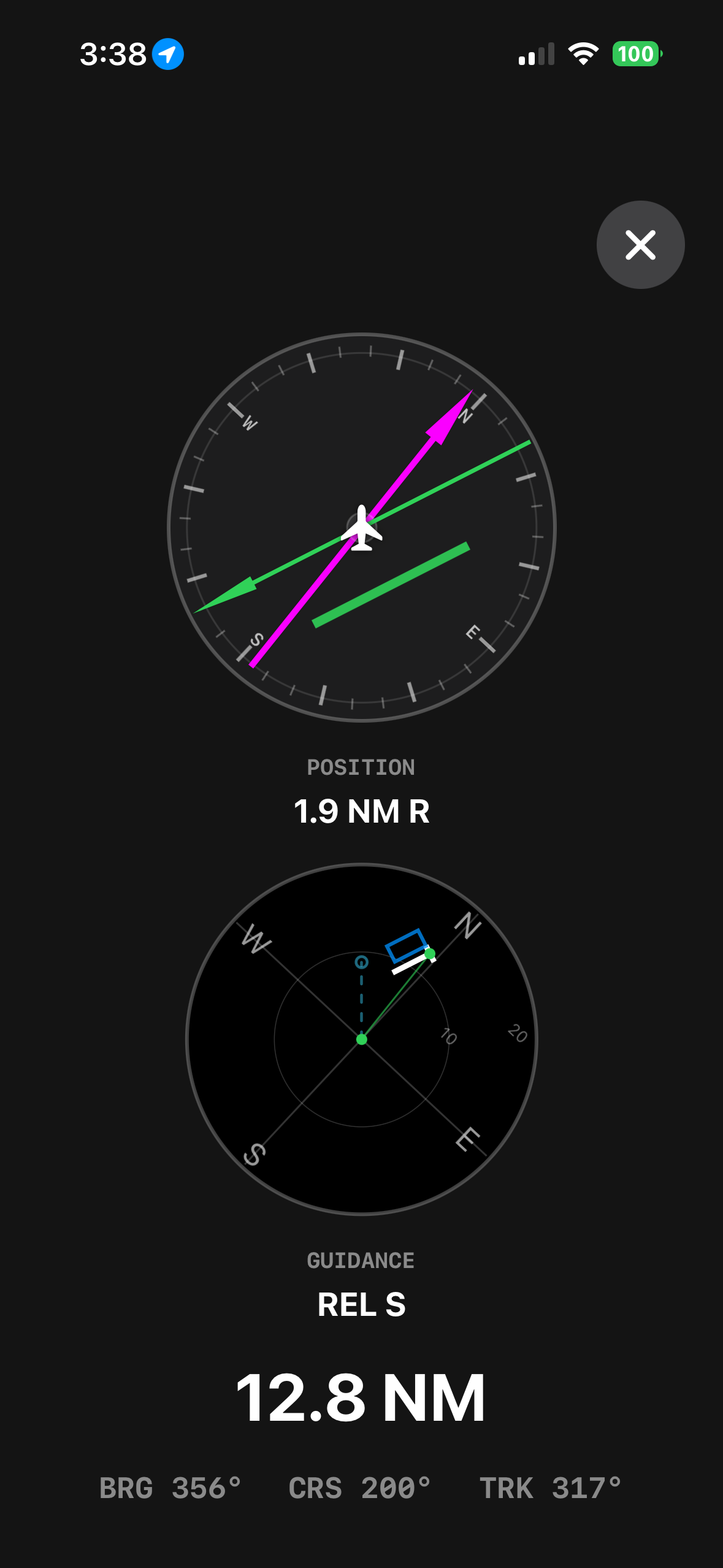
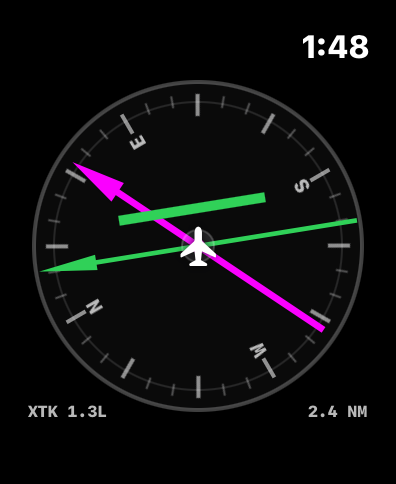
Flight Cue makes your relationship to the runway easier to understand before the last turn. HSI-style guidance, extended-centerline awareness and ground-track context help reduce the mental geometry involved in setting up an arrival. The radar-style runway view can also depict the traffic-pattern box, giving you an immediate visual picture of where the pattern sits relative to the airplane and runway.
- Runway HSI and extended-centerline awareness
- Traffic-pattern box depicted directly on the radar-style runway view
- Cross-track information for runway alignment
- Ground-track based presentation
- Runway orientation and arrival geometry in a single instrument-like view
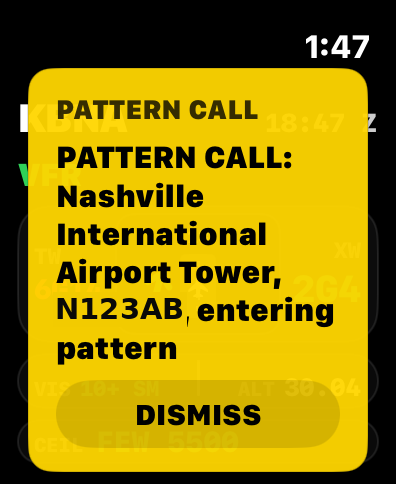
- Pattern context can be mirrored to Apple Watch
Arrival awareness
Know when to start your descent.
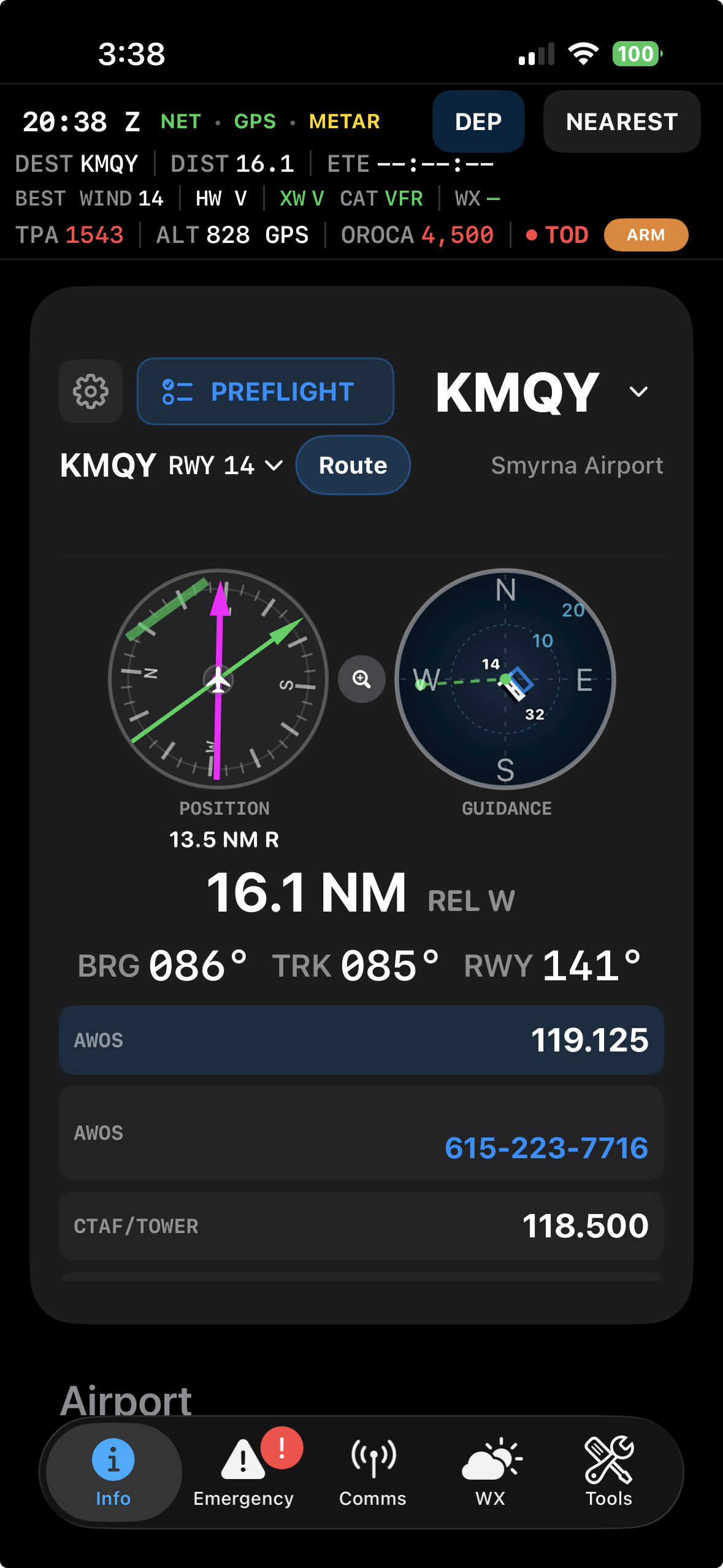
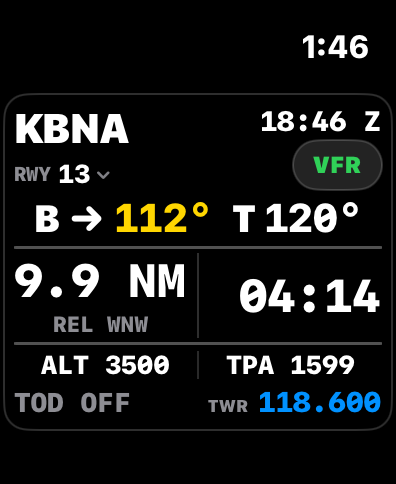
Flight Cue keeps the arrival developing in front of you before the cockpit gets busy. Distance, bearing, runway orientation and descent context are brought together so you can recognize when it is time to begin your descent instead of realizing late that you are high, fast or behind the airplane.
- Top-of-descent awareness centered on the active destination
- Distance, bearing, ETA and runway context in one view
- Arrival reminders before workload spikes
- Runway and pattern orientation before entering the terminal area
Weather
See the weather that matters to the flight, not just a raw report.
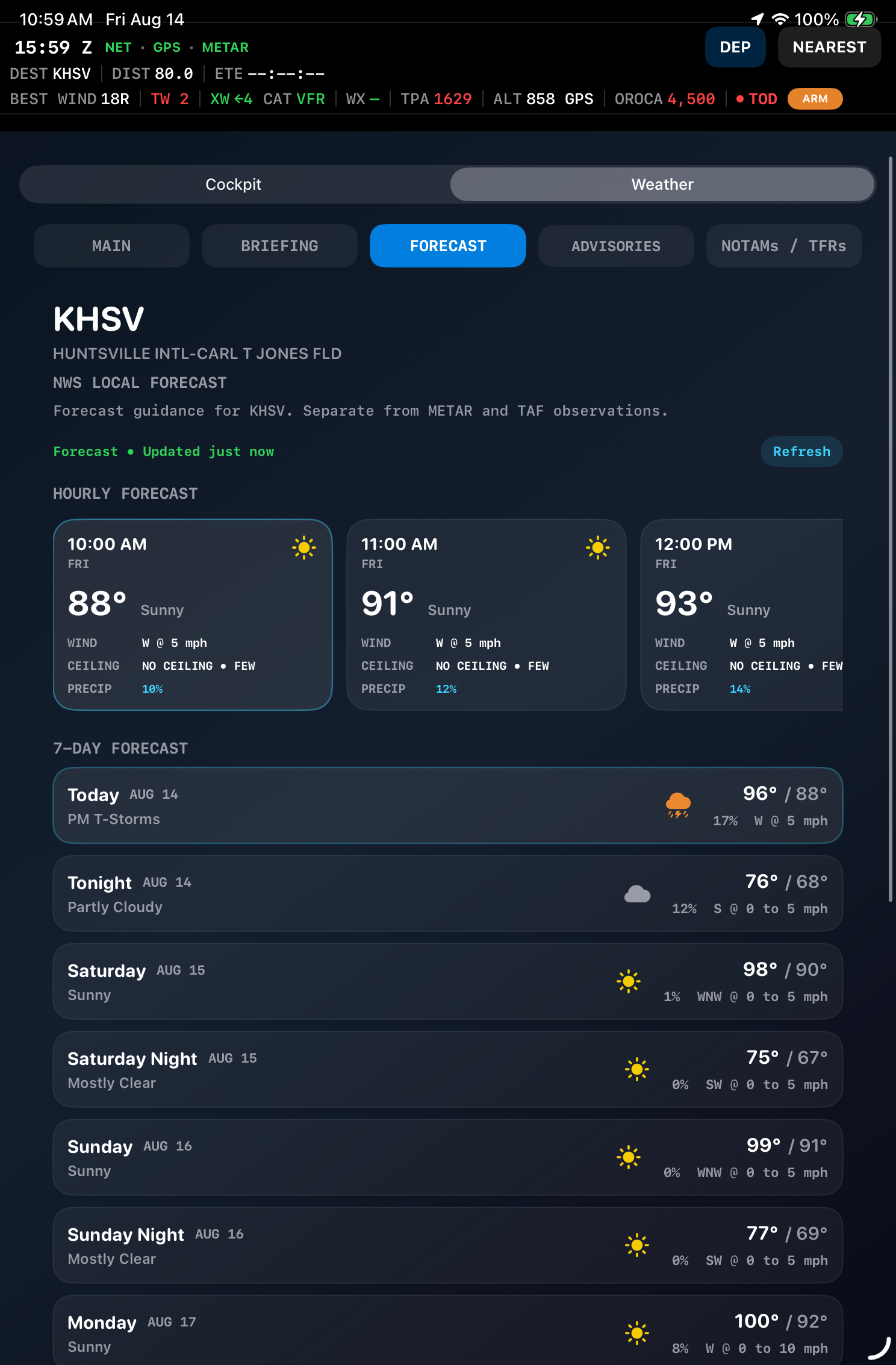
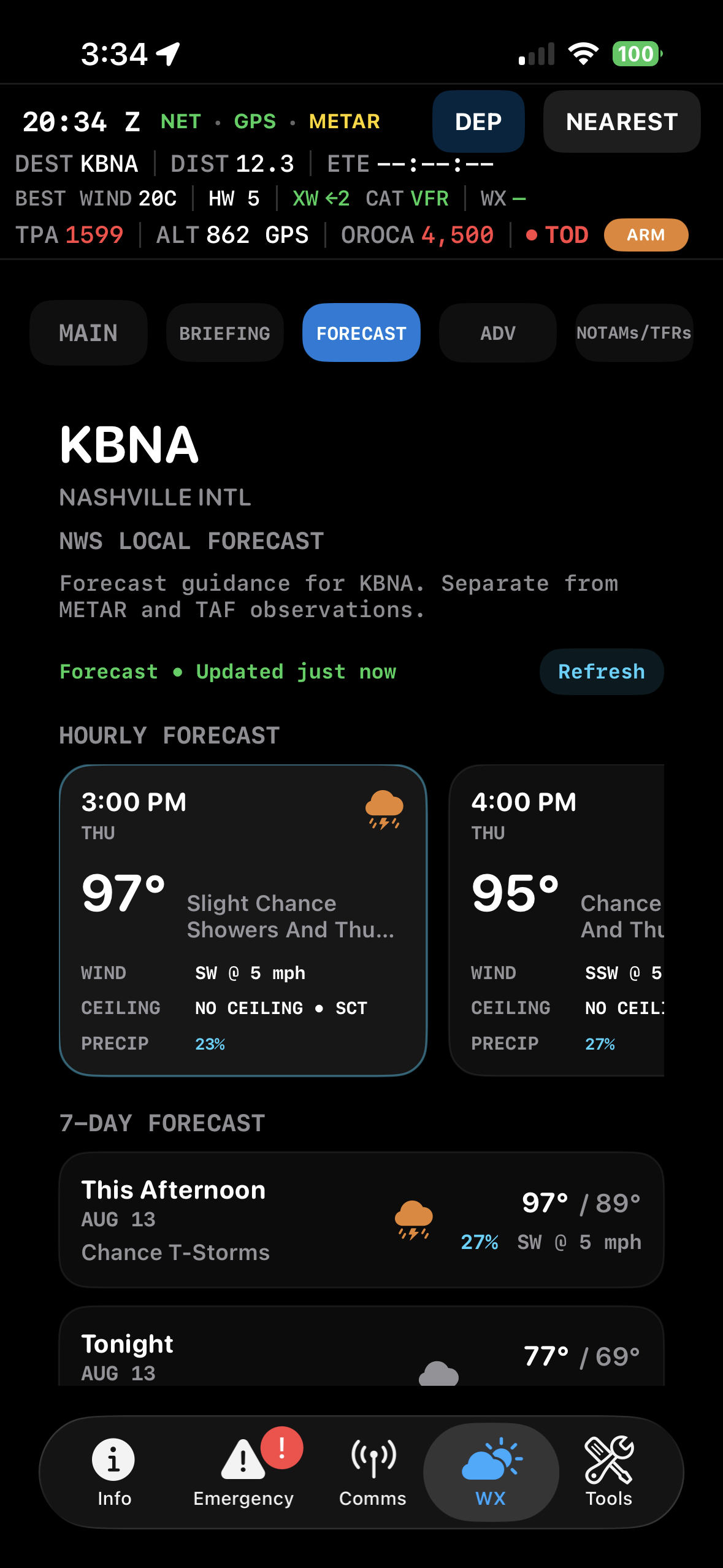
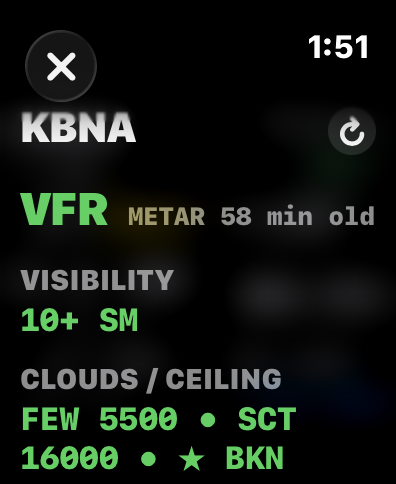
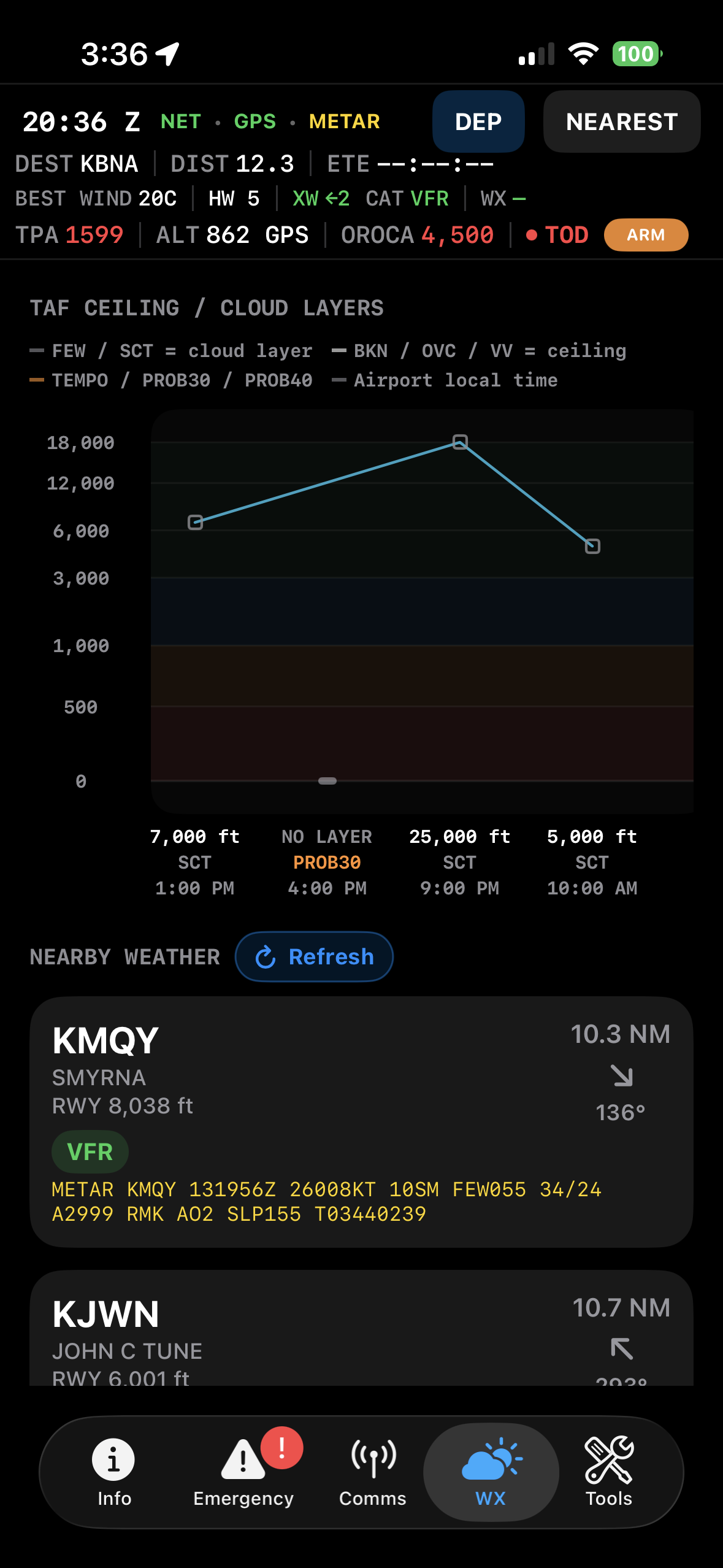
Flight Cue turns airport weather into operational context. METARs, TAFs, flight category, visibility, ceilings, nearby airport conditions and runway effects are organized so you can build a useful picture quickly.
- Decoded METARs and TAF forecast information
- Flight-category, visibility and ceiling awareness
- Nearby airport weather for a broader local picture
- Runway-specific wind impact instead of raw wind alone
- Weather details available on iPhone, iPad and Apple Watch
Advisories
Bring the weather hazards into the same flight picture.
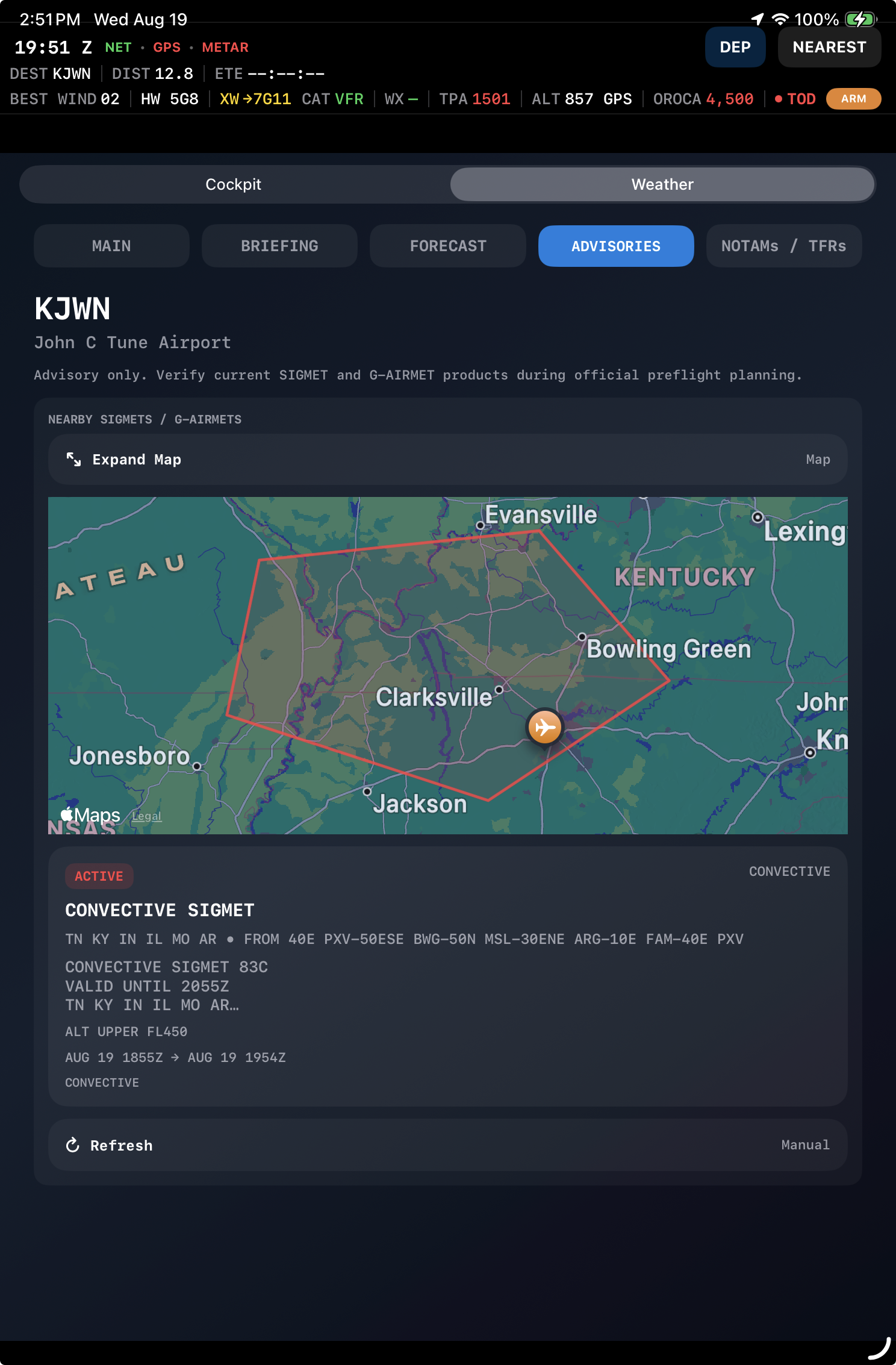
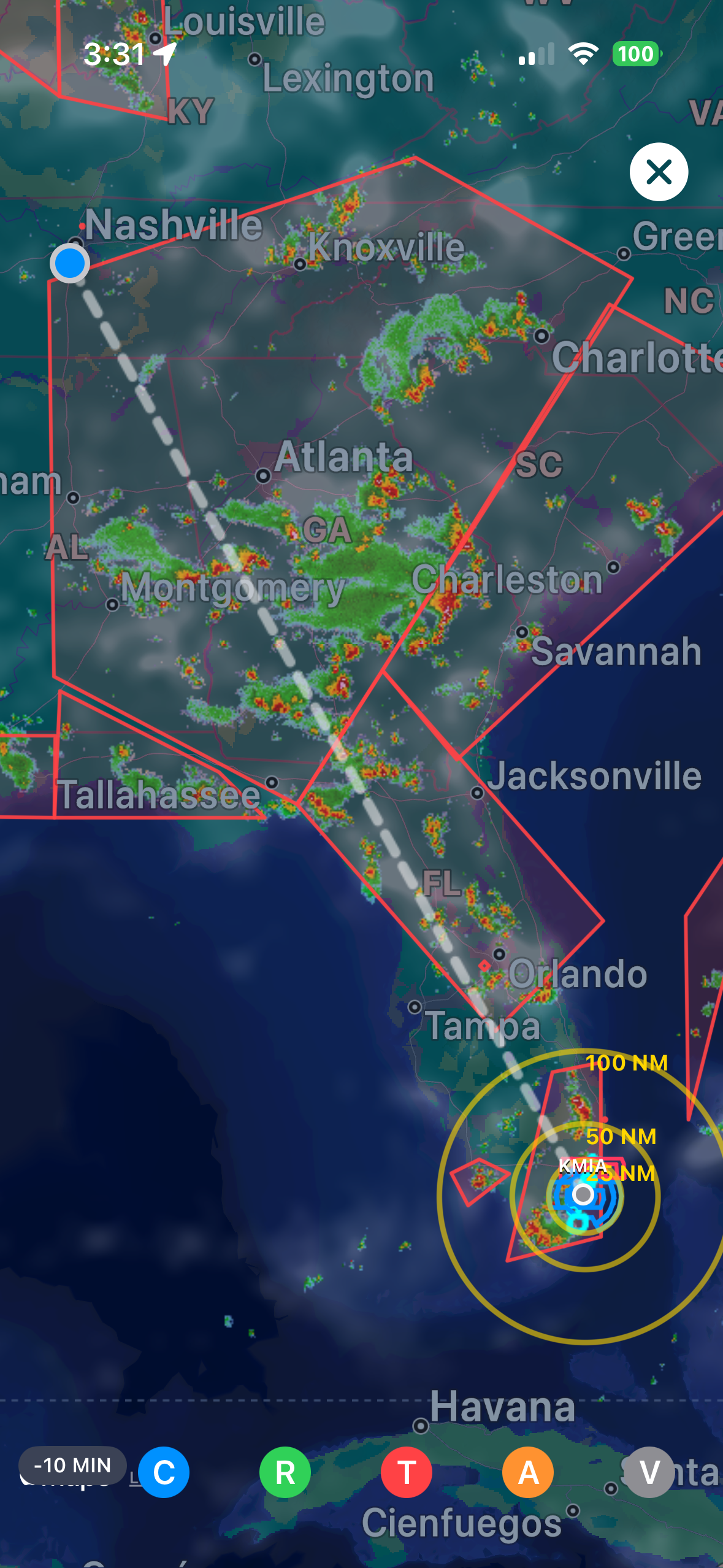
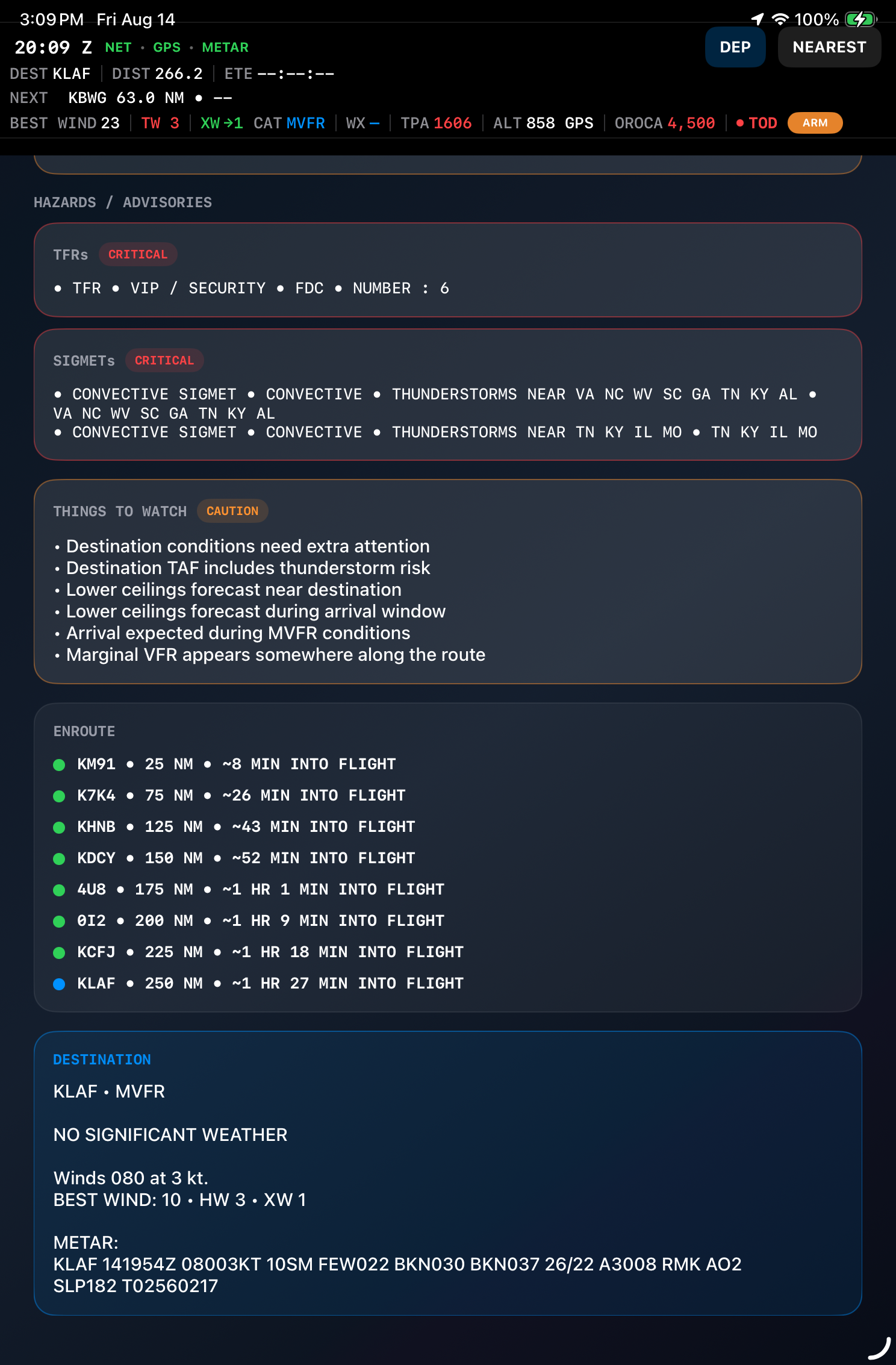
Flight Cue gives AIRMETs, SIGMETs and convective advisories a focused place in the briefing instead of making you piece the picture together from unrelated screens. Route context helps you see why an advisory matters to this flight.
- AIRMET, SIGMET and convective advisory awareness
- Map context to visualize the advisory area
- Route relevance kept connected to the active flight
- Validity and hazard details presented in a pilot-scannable format
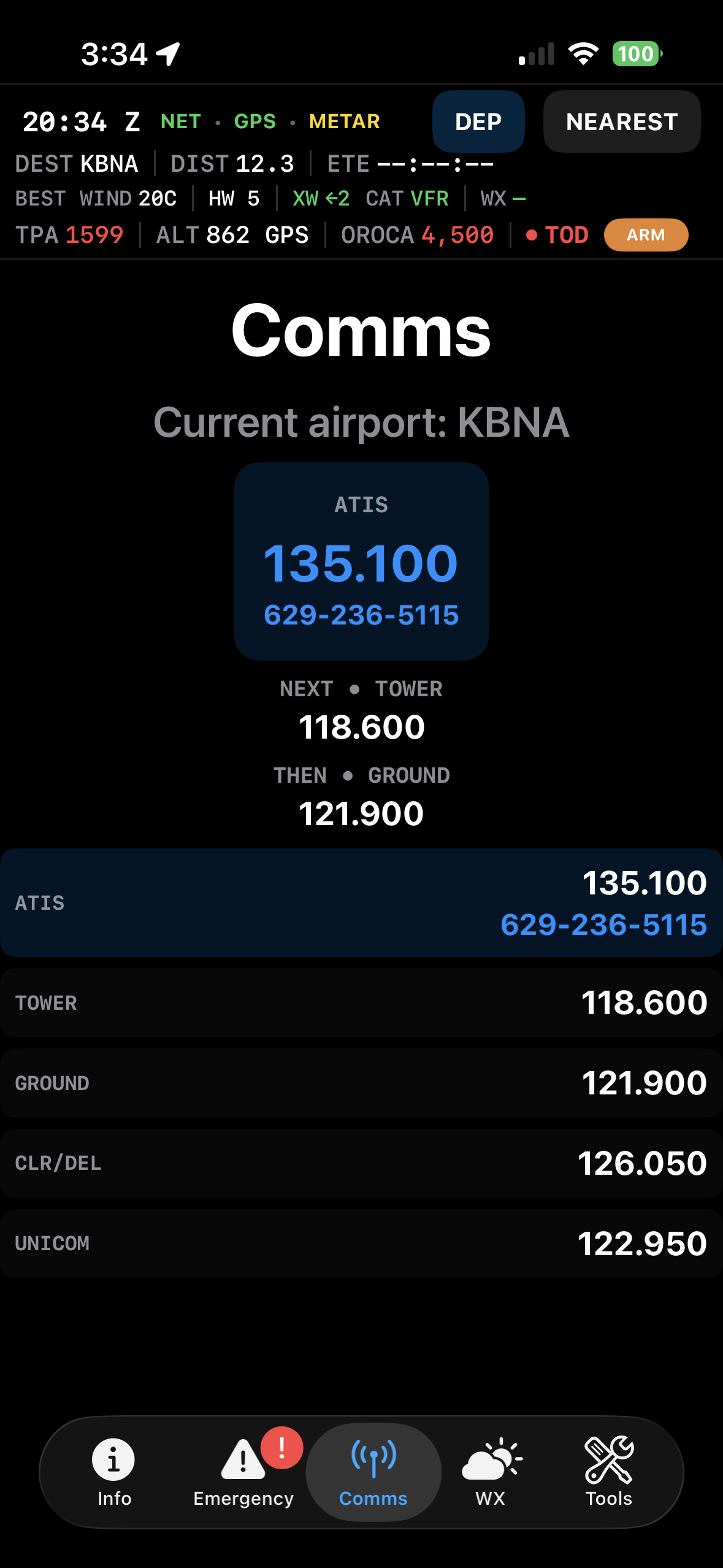
Communications
Know the frequency you need now — and the one you will need next.
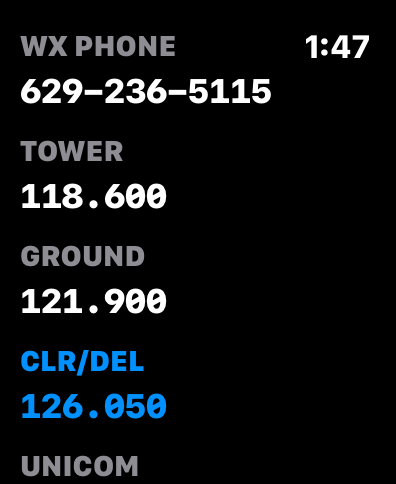
Flight Cue organizes frequencies around the actual flow of flight rather than making you hunt through a static airport list. The goal is to keep radio changes from becoming one more thing you have to remember at the busiest part of the arrival.
- Operationally ordered airport frequencies
- Current and next-frequency awareness
- Arrival and radio reminders at useful distances
- Clearance, tower, ground and other relevant frequencies surfaced in context
- Critical communications mirrored to Apple Watch
NOTAMs
See the NOTAMs that matter without digging through the noise.
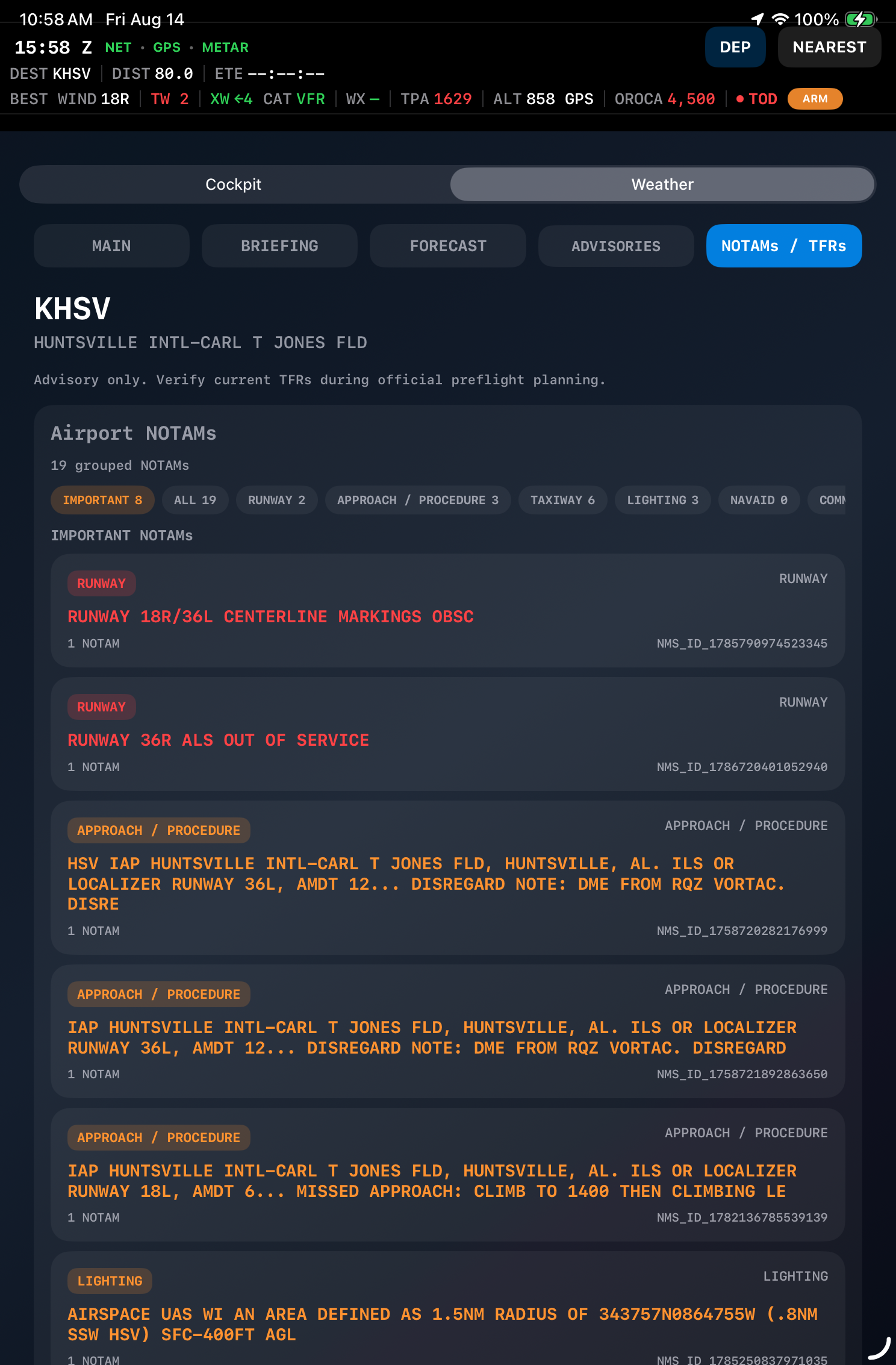
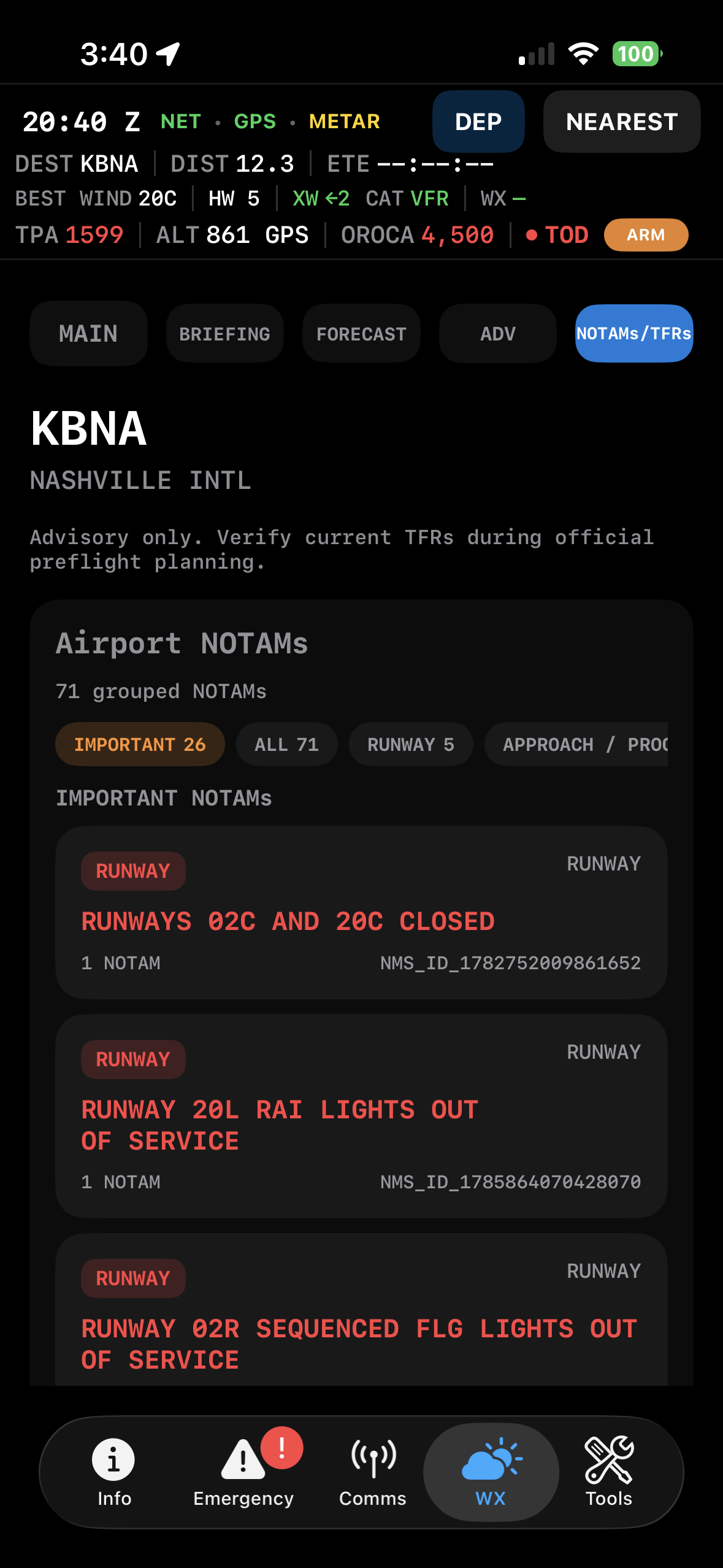
Flight Cue brings airport NOTAMs into the same place you are already checking the airport. Important operational items can stand out from the noise so a runway closure, lighting issue, approach problem or other material restriction is harder to miss.
- Airport NOTAMs grouped by operational relevance
- Important closures and restrictions called out prominently
- Effective and expiration timing kept visible
- Designed to reduce the chance of burying a meaningful item in a long list
- Works alongside runway and airport context instead of in a separate workflow
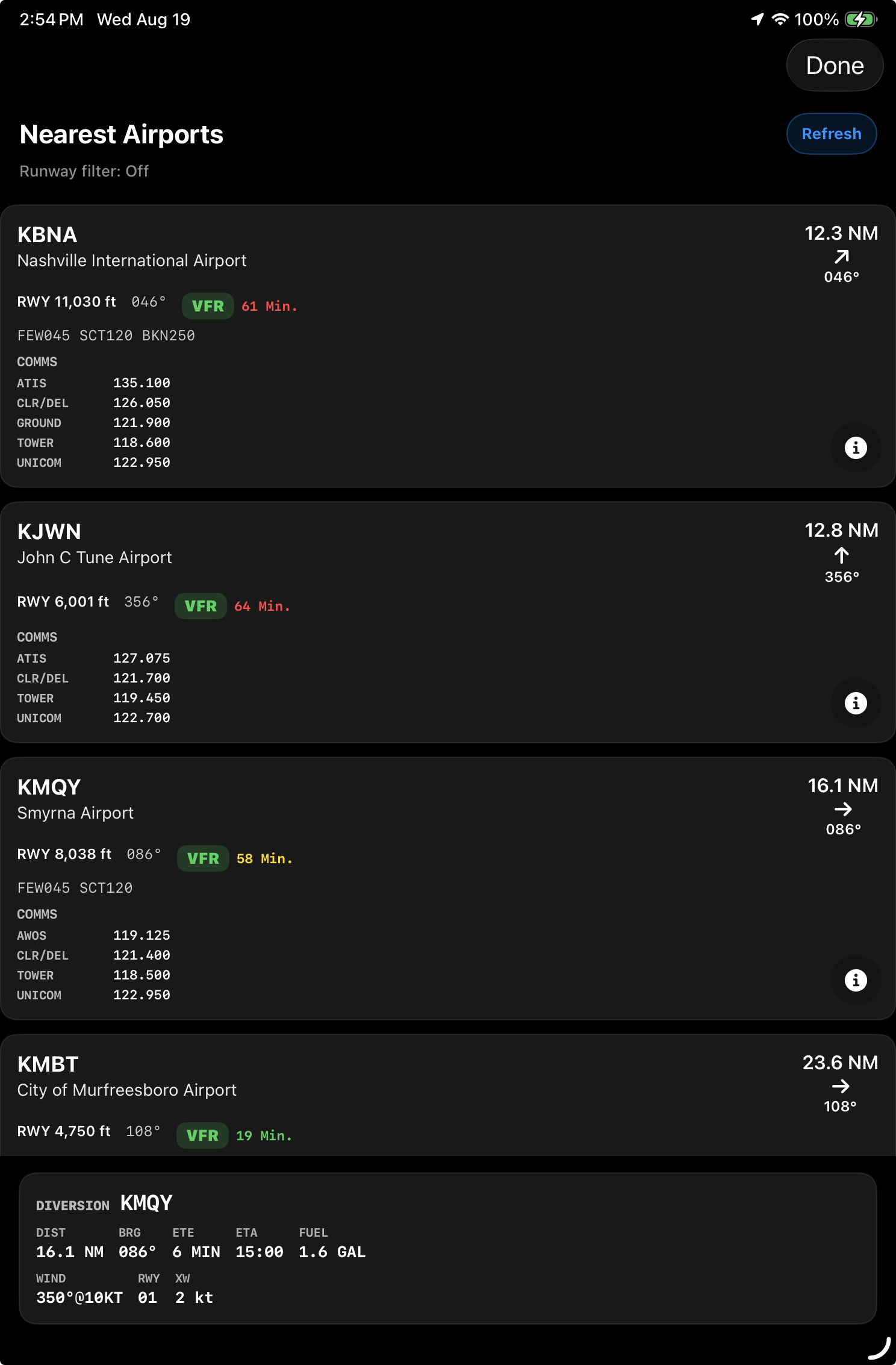
Nearest airports
Know your nearby options without digging through the map.
Flight Cue keeps nearby airports ranked and readable with the information you are likely to need next: distance, bearing, runway, weather category and useful frequencies. A simple tap can load an airport immediately, while your custom aircraft profile can add useful planning context such as estimated time enroute and fuel burn.
- Distance and bearing to nearby airports
- Runway and weather context visible at a glance
- Useful airport frequencies kept with each option
- Tap an airport to load it immediately into the active airport view
- Custom aircraft profiles can provide quick ETE and estimated fuel-burn context
- Designed for rapid comparison when plans change
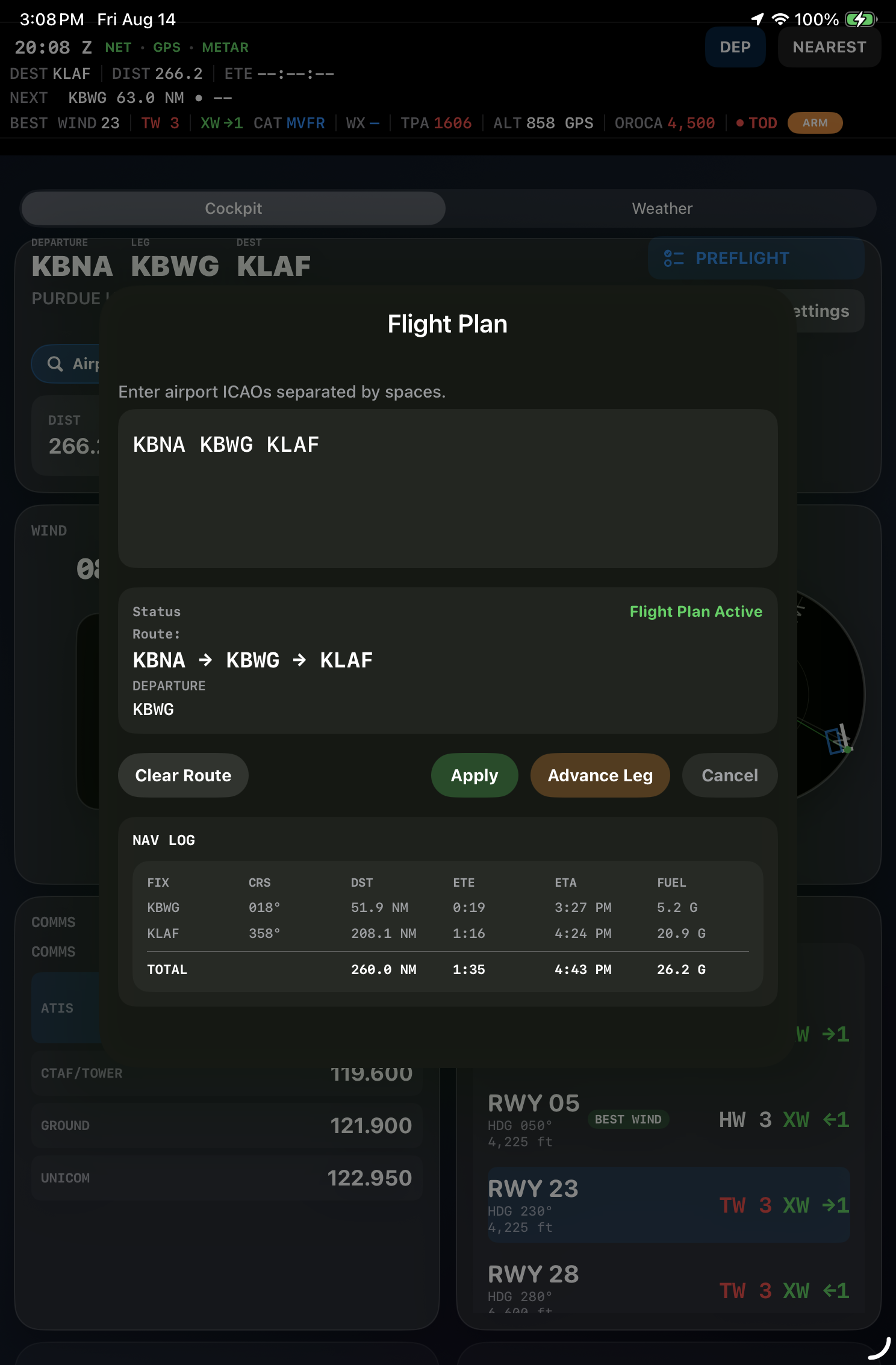
Flight planning + route context
Keep the route connected to the rest of the cockpit picture.
The route is not useful as an isolated line. Flight Cue uses it as context for arrival timing, airport awareness and the information that becomes important later in the flight.
- Route and waypoint context kept with the active destination
- Distance and timing information carried into the arrival picture
- Map views that help visualize the route around weather and airspace
- Large-screen iPad presentation for preflight and enroute awareness
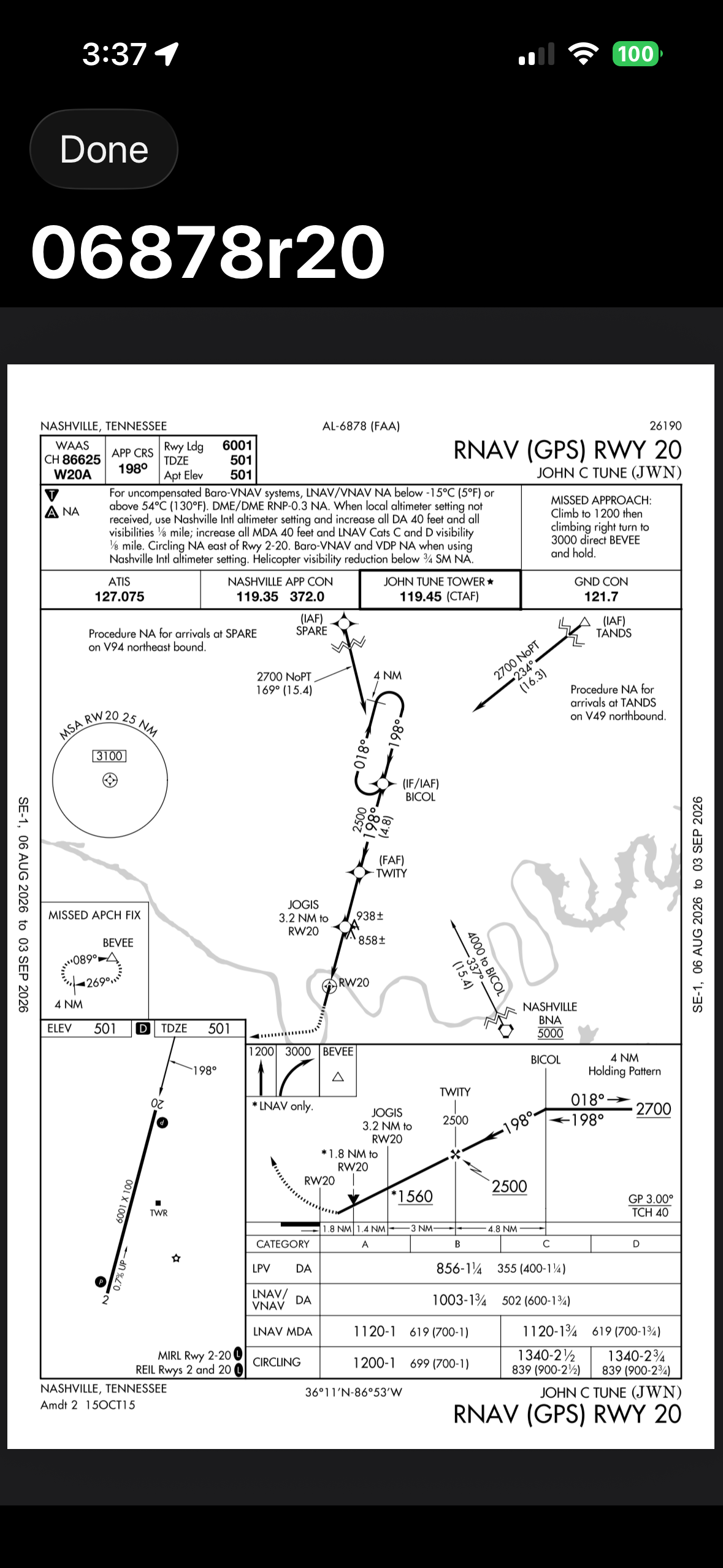
Charts + airport reference
Keep the airport reference material close when you need it.
Airport reference material belongs near the airport information, not several app layers away. Flight Cue keeps chart and airport-reference access within the same workflow used for weather, runways and communications.
- Airport chart and diagram access
- Reference information alongside the selected airport
- Designed to reduce app switching during preflight and arrival preparation
Weather briefing
Build the bigger picture before you launch.
For preflight and longer trips, Flight Cue can expand beyond a single METAR into a broader weather picture. Route weather, advisories and airport conditions are easier to absorb when they are organized around the trip instead of presented as unrelated data.
- Departure and destination weather context
- Route-oriented weather and advisory presentation
- Graphical and textual views for different levels of detail
- Designed to move from briefing detail to concise in-flight awareness
VFR + IFR map awareness
Use the map for context without making the map the whole app.
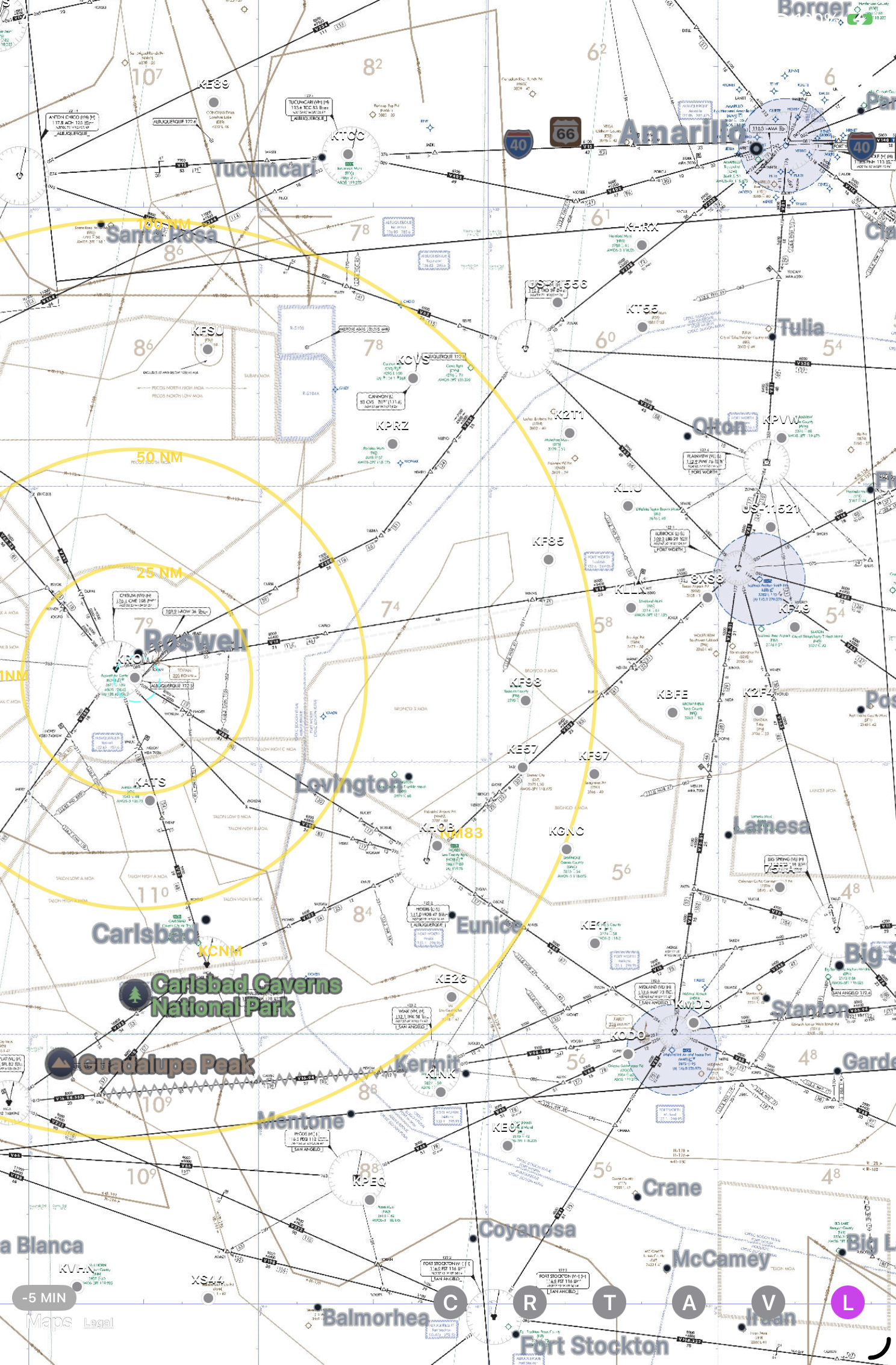
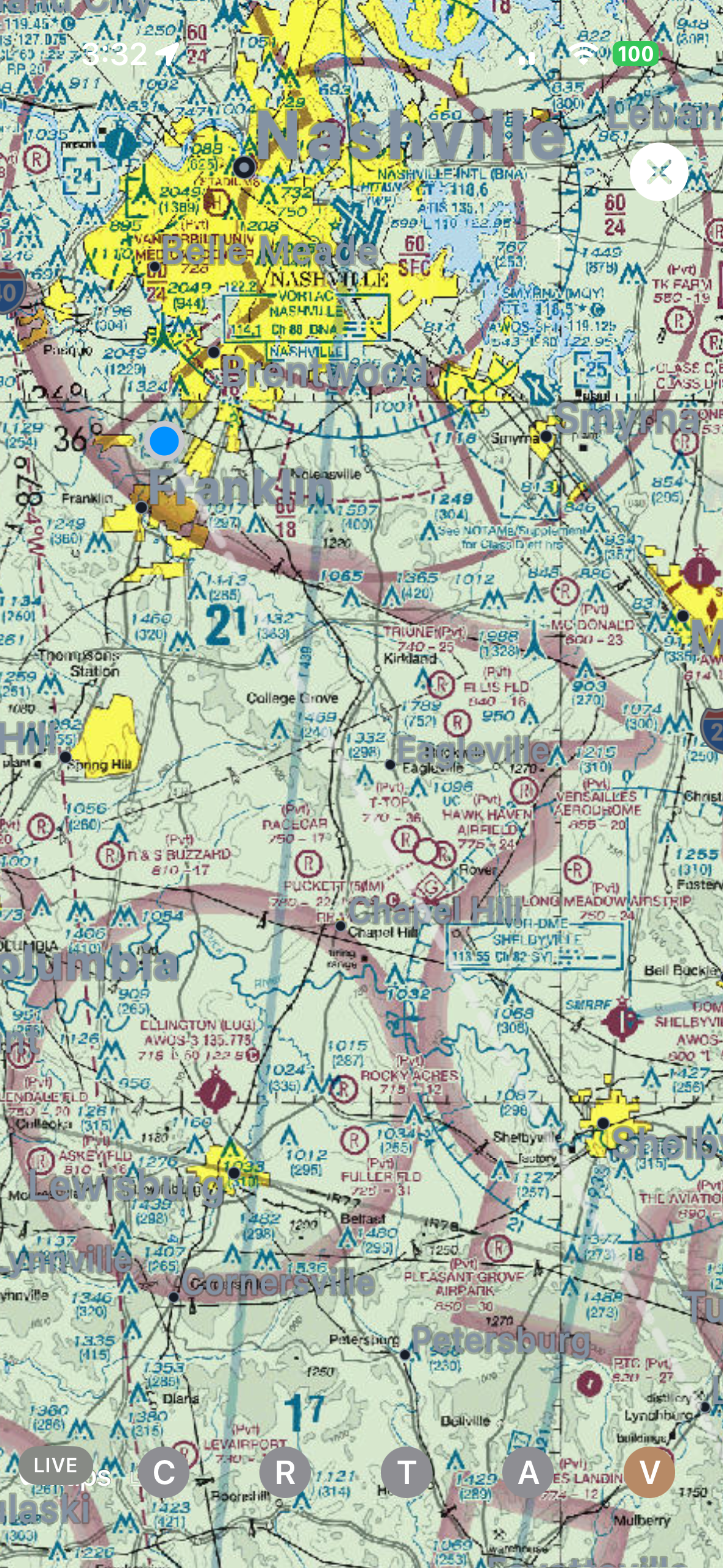
Flight Cue gives you both its unique hybrid VFR sectional presentation and IFR low-enroute chart coverage, keeping the route and aviation picture close without turning the entire app into a moving map.
- Unique hybrid VFR sectional presentation that blends familiar sectional detail with Flight Cue's focused map context
- IFR low-enroute chart coverage for instrument-flight context
- Sectional automatically disappears at very close and very wide zoom levels when that detail is no longer useful
- Route visualization against aviation map context
- Useful for airspace and geographic orientation
Radio + weather reminders
Never forget a radio call again.
Flight Cue reminds you about the small but important calls and checks that are easy to lose while you are busy flying. Get a cue to check ATIS or AWOS, make your 10-mile call, make your 5-mile call, and stay ahead of the next communication without carrying it all in your head.
- Reminder to check destination weather such as ATIS or AWOS before arrival
- Configurable 10-mile and 5-mile radio-call reminders as the airport gets closer
- Glanceable alerts on Apple Watch for fast acknowledgement
- Designed to support the radio flow without adding another task to manage
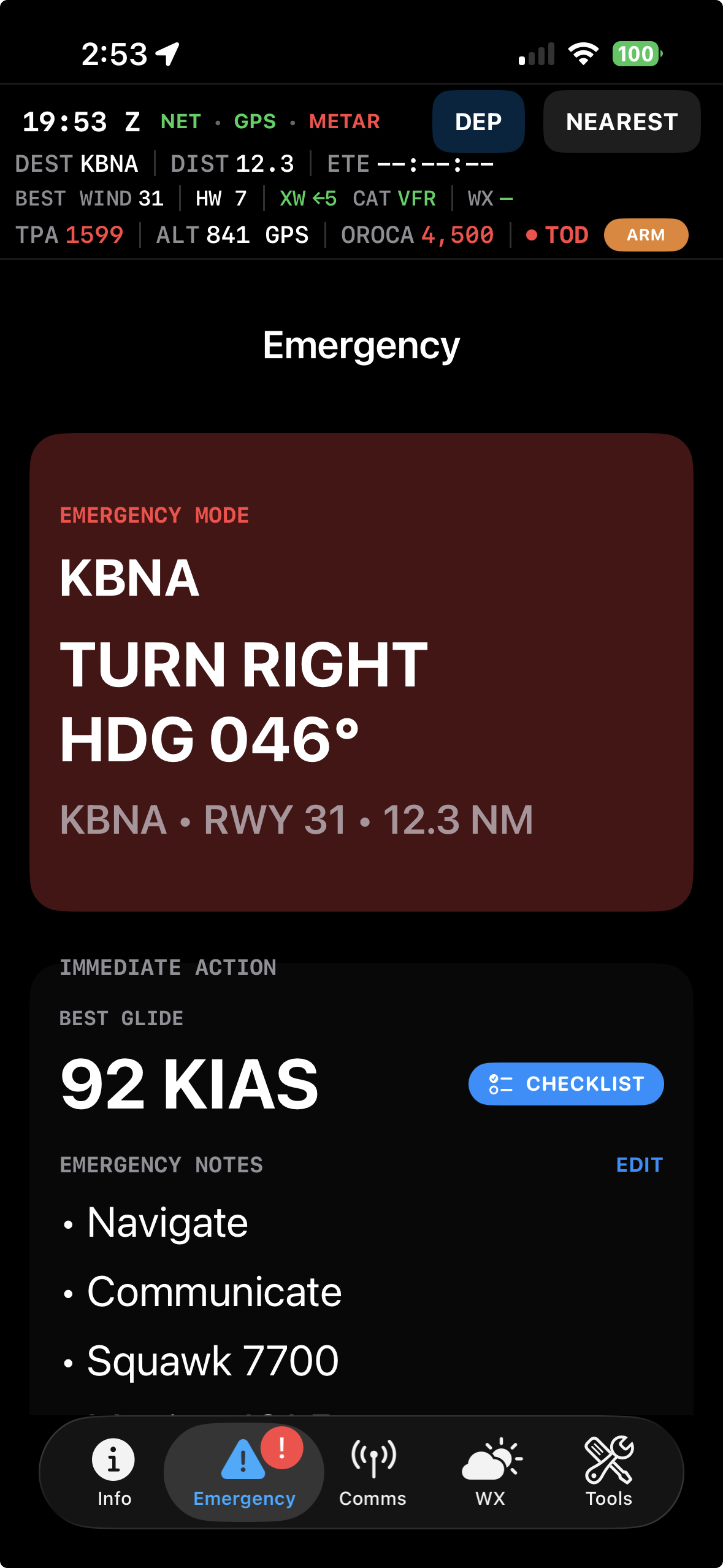
Emergency mode
When the workload spikes, put the essentials in one place.
Emergency Mode strips the presentation down to immediate priorities: a nearest-airport direction cue, best-glide reference and quick access to emergency notes and checklists. It is designed as cockpit support — not a replacement for aircraft procedures or pilot judgment.
- Immediate nearest-airport direction and distance cue
- Aircraft-profile best-glide reference
- Emergency notes and checklist access kept close
- Focused presentation built for high-workload moments
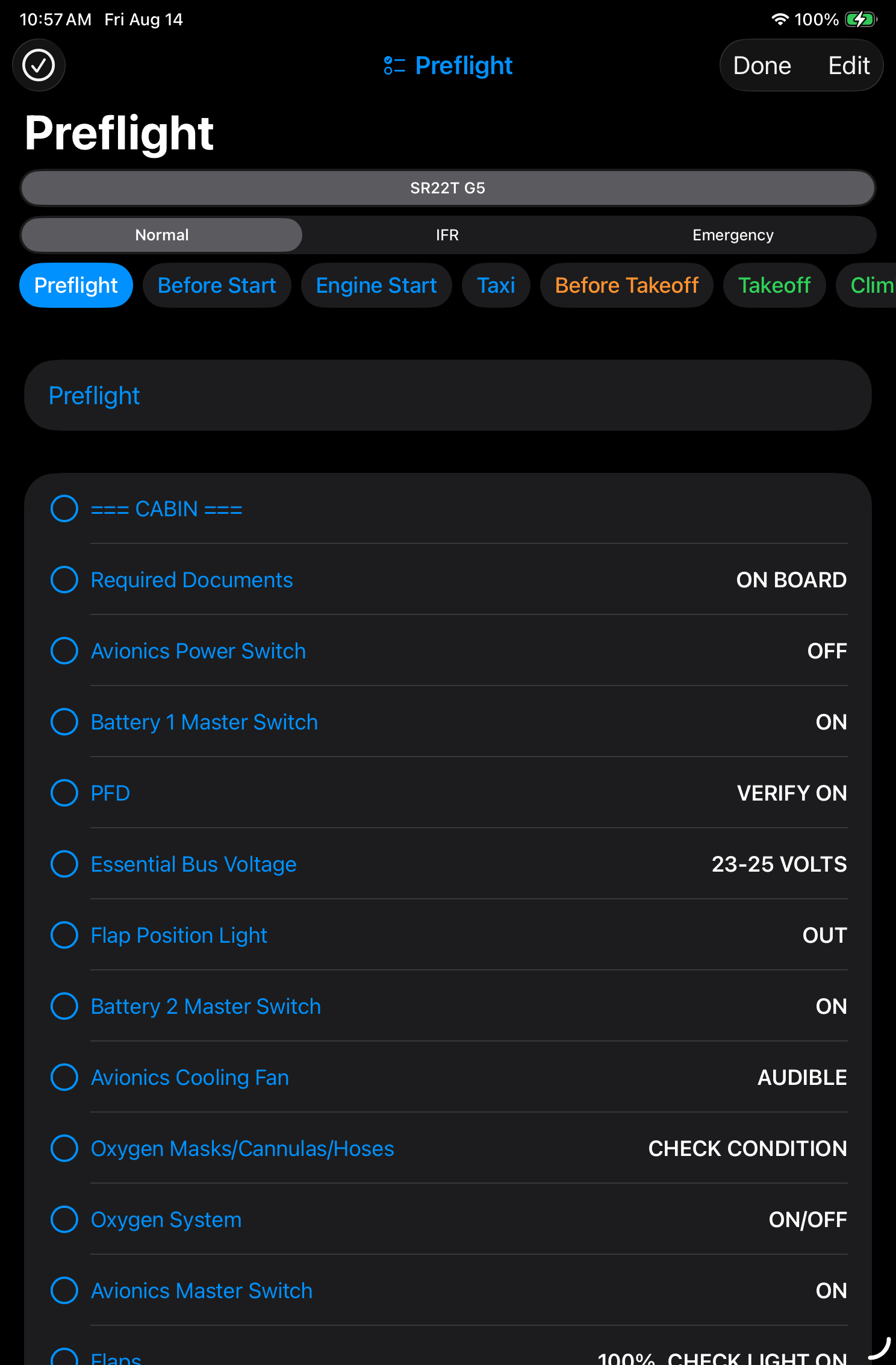
Checklists
Keep the checklist in the same cockpit system.
Flight Cue can keep structured checklists close at hand so routine flows do not depend on memory alone. The iPad layout gives the checklist room to breathe while keeping the broader flight context nearby.
- Organized flight-phase checklists
- Clear completion state for each item
- Useful for preflight, departure, arrival and other repeatable flows
- Designed for quick scanning rather than dense document reading
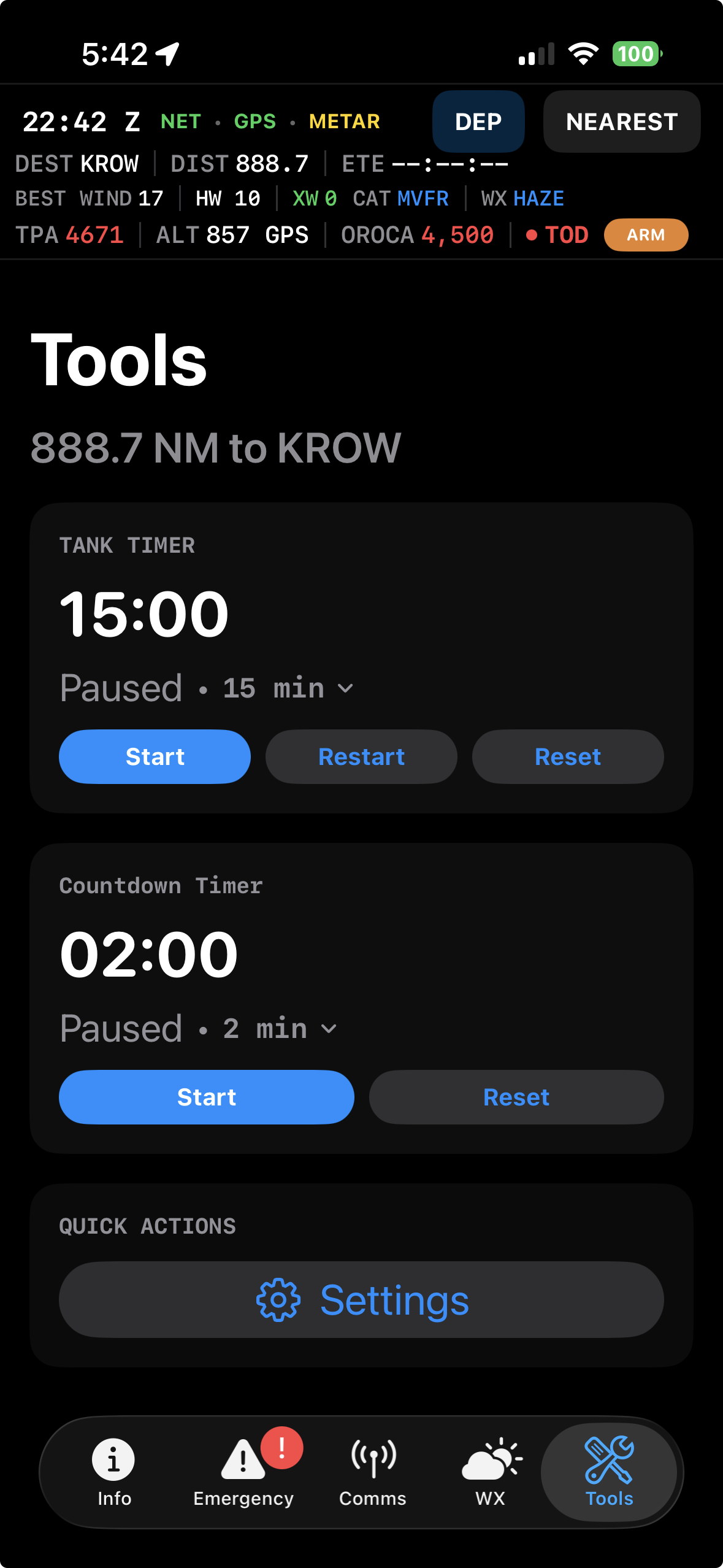
Tools
Keep useful cockpit tools close at hand.
Flight Cue keeps supporting utilities together in one focused place, so the tools you may need before or during a flight stay inside the same cockpit workflow.
Airspace awareness
Get the warning before the deviation.
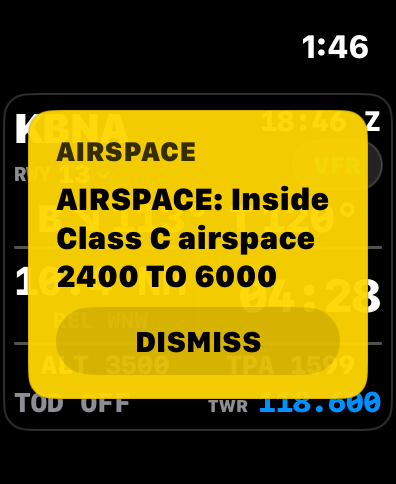
Controlled airspace is easy to understand on the ground and much easier to miss when you are descending, talking, navigating and looking outside. Flight Cue watches your position and altitude context so approaching or entering airspace becomes an obvious cockpit cue.
- Proximity awareness around controlled airspace
- Altitude-aware context around shelves and boundaries
- Prominent alerts designed to be noticed without constant map scanning
- Watch alerts can put the warning directly on your wrist
One cockpit picture
iPhone, iPad and Apple Watch work as one system.
The iPhone is the brain of the Flight Cue system — no additional GPS receiver or dedicated hardware is required. Run Flight Cue directly on iPhone, use a cellular/GPS-equipped iPad as the primary computer, or run iPad in Companion Mode while your iPhone stays tucked away. Apple Watch becomes the glanceable extension of that same flight picture.
- No additional hardware required — the iPhone can provide the core Flight Cue experience by itself
- A cellular/GPS-equipped iPad can operate as the primary Flight Cue computer
- Companion Mode lets the iPad become the cockpit display while the iPhone remains the brain in the background
- Shared destination and flight context across devices
- Glanceable flight, weather, comm and alert cues on Apple Watch
The idea behind Flight Cue
Spend less attention managing the app. Spend more attention flying the airplane.
Flight Cue is built around the moments pilots most want to stay ahead of — not around making you stare at another screen.